Editing tests
The Tests tab on Review & Edit is where you shape what the autograder grades. The AI gives you a starting set; this article covers adding, editing, reordering, and deleting tests, plus the three comparison types and how to catch common bugs.
Written By Alan Gandy
Last updated 3 months ago
The Tests tab on the Review & Edit screen is where you shape exactly what the autograder grades. The AI generates a starting set; from here you can add coverage, edit specifics, reorder, or delete. This article walks through everything you can do.
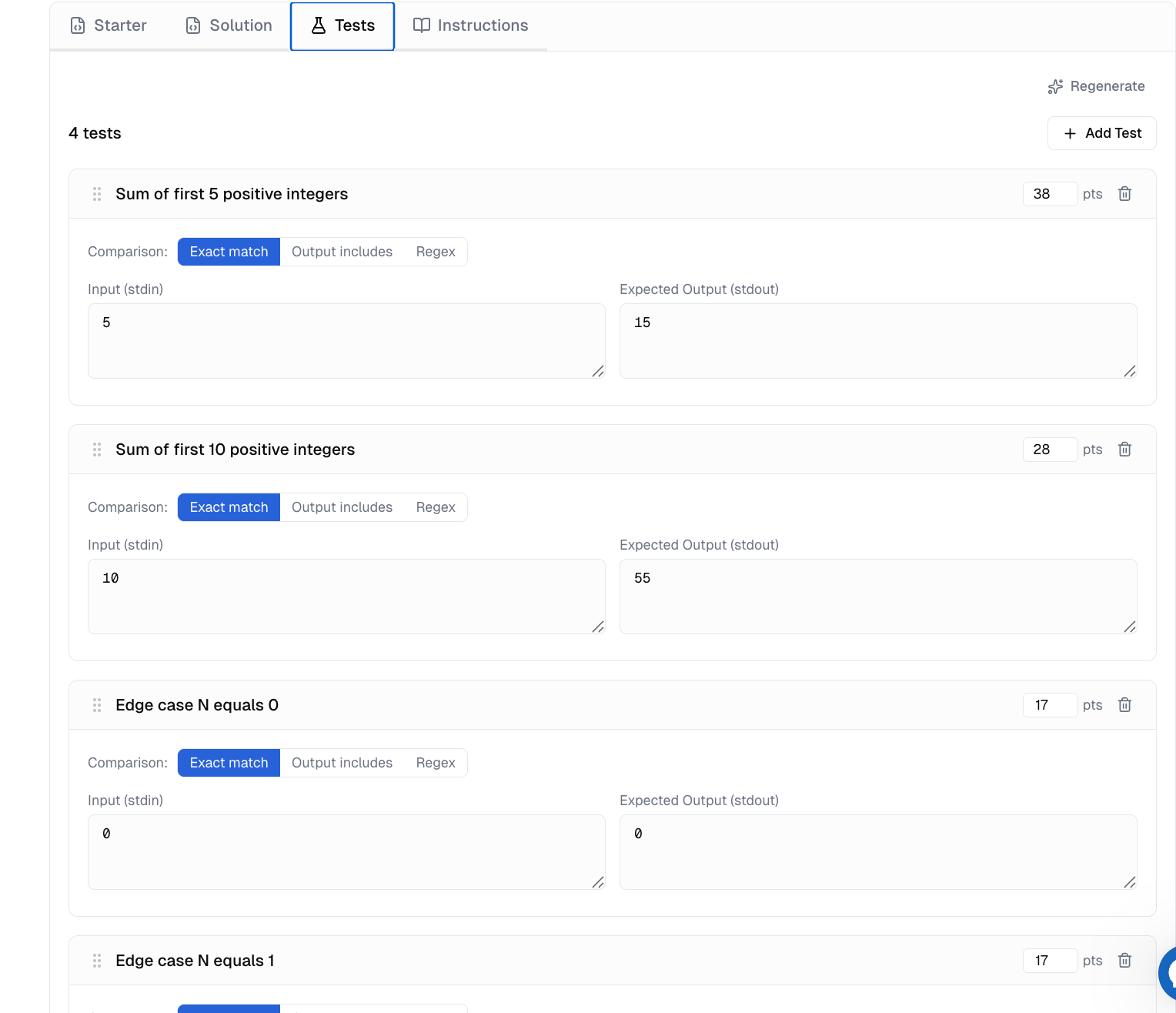
What a test row contains
Each test has five fields:
The three comparison types
Exact match — student's stdout must equal the expected output character-for-character (whitespace included). Use when output formatting is part of what you're grading. Most strict; easiest for students to fail on a stray space or newline.
Output contains — passes if the expected text appears anywhere in the student's stdout. Use when students might print debug output, prompts, or extra context, and you only care that the answer is somewhere in there.
Regex — expected output is treated as a regular expression that must match somewhere in the student's stdout. Use when output has acceptable variation (e.g., Score: \d+/100 accepts any score). The regex syntax is JavaScript-flavoured.
When in doubt, Exact match is the strictest signal — but switch to Output contains or Regex if students keep failing on whitespace or formatting differences that don't matter pedagogically.
How to do each operation
Add a test: Click Add Test in the top right of the Tests tab. A blank row appears with default values. Fill in the four editable fields; auto-saves as you type.
Edit a test: Click any field to edit. Changes save automatically — no Save button. You'll need to re-run validation if you've changed the expected output, since the autograder check confirms tests pass against the solution.
Reorder tests: Each row has a drag handle (dotted icon on the left). Drag to reorder. Order matters only cosmetically — it's the order students see in their grading report.
Delete a test: Click the trash icon on the right of the row. There's no undo, but no harm — re-add it from scratch or click Regenerate to get a fresh AI-generated set.
Regenerate the whole set: The Regenerate button at the top of the Tests tab re-runs the AI on the test set against your current solution. This replaces every existing test with a new generated set. Costs one credit. Use sparingly — once you've made manual edits, regenerating loses them.
How many points per test
There's no hard rule, but conventions:
- 5–10 points — small test (one specific input, one specific output)
- 10–20 points — typical test
- 20–25 points — important / heavily-weighted test (the one a student must get to demonstrate mastery)
Total across all tests should usually equal 100 (so it reads as a percentage in Classroom). The AI's default sets usually total 100 for you.
Designing a good test set
A good test set covers four bases:
The happy path — the obvious case that should "just work." Always include at least one. (e.g., "Sum of [1, 2, 3] is 6")
Edge cases — empty input, single-element input, maximum-size input, negative numbers, zero, off-by-one boundaries. The AI usually generates a few; add more if you can think of common student mistakes.
Failure modes — inputs that have caused students to write buggy code in past semesters. If you know "students always forget the case where the list is sorted in reverse," add a test for that.
Output formatting — if your assignment specifies "print one number per line," include a test that catches print(1, 2, 3)-style output that puts them on one line.
Common pitfalls
Trailing newlines in expected output. print("hello") in Python adds a trailing \n. If your expected output is hello (no newline), Exact match fails. Either include the newline in expected, or switch to Output contains for that test.
Locale-sensitive output. Tests with numbers like 1,234 or floating-point precision like 3.14159265 can fail on different runners. Use Regex with \d+ patterns, or format the output explicitly in the assignment.
Order-sensitive expected output. If the program prints results in any order (e.g., iterating a Python set), Exact match fails when the order differs. Sort the output in the program, or use Output contains.
Tests that don't actually test the function students wrote. If your assignment is about compute_score() but the test only checks the program prints a banner at startup, students who wrote a stub compute_score and a working banner pass. Make sure inputs exercise the function being graded.
Way too many tests. A 50-test assignment is exhausting to debug for both you and students. Aim for 5–10 well-chosen tests rather than 50 redundant ones. Each one should test something distinct.
When a test fails on validation
If you click Run autograder check and a test fails, the bounce-back banner shows which test failed and what its actual vs. expected output was. See When validation fails for the full triage. Common fixes:
- The test's expected output is wrong → edit it to match what the solution actually produces
- The solution has a bug → fix the solution code
- The starter is producing wrong output → fix the starter (students need to BE able to pass once they fill in TODOs)
- The comparison type is too strict → switch from Exact match to Output contains or Regex
After fixing, click Run autograder check again.
Where to go next
- Ready to run validation? → Open the Instructions tab, approve instructions, click Run autograder check. See The autograder check.
- Validation just failed on a specific test? → When validation fails walks through the bounce-back banner and what to do.
- Want to understand the comparison types in more depth? → The TL;DR is above. For specific edge cases, ask via the chat widget.