From Document mode — convert a lab handout into an assignment
Highest-leverage generation mode. You provide prose (a lab description, syllabus excerpt, or chapter problem); the AI builds starter, solution, tests, instructions, and workflow from scratch. Best for digitizing old paper labs or quickly turning a textbook problem into graded work.
Written By Alan Gandy
Last updated 3 months ago
From Document is the highest-leverage mode. You provide prose describing what students should build — even just a paragraph — and the AI generates everything from scratch: starter code, solution code, tests, instructions, and the workflow.
Pick this mode when you don't have code yet, just words. Common cases:
- An old paper-based lab handout you want to digitize
- A textbook problem you want to assign as graded work
- A new lab idea you've sketched in a few sentences and want a complete first draft of
- A syllabus blurb that says "students will implement X" and you want X built out
- You want to spitball a fresh assignment with no inputs ready
If you have code already (starter, solution, or both), use Forward / Backward / Both Provided instead — those modes give you tighter control because the AI has less to invent.
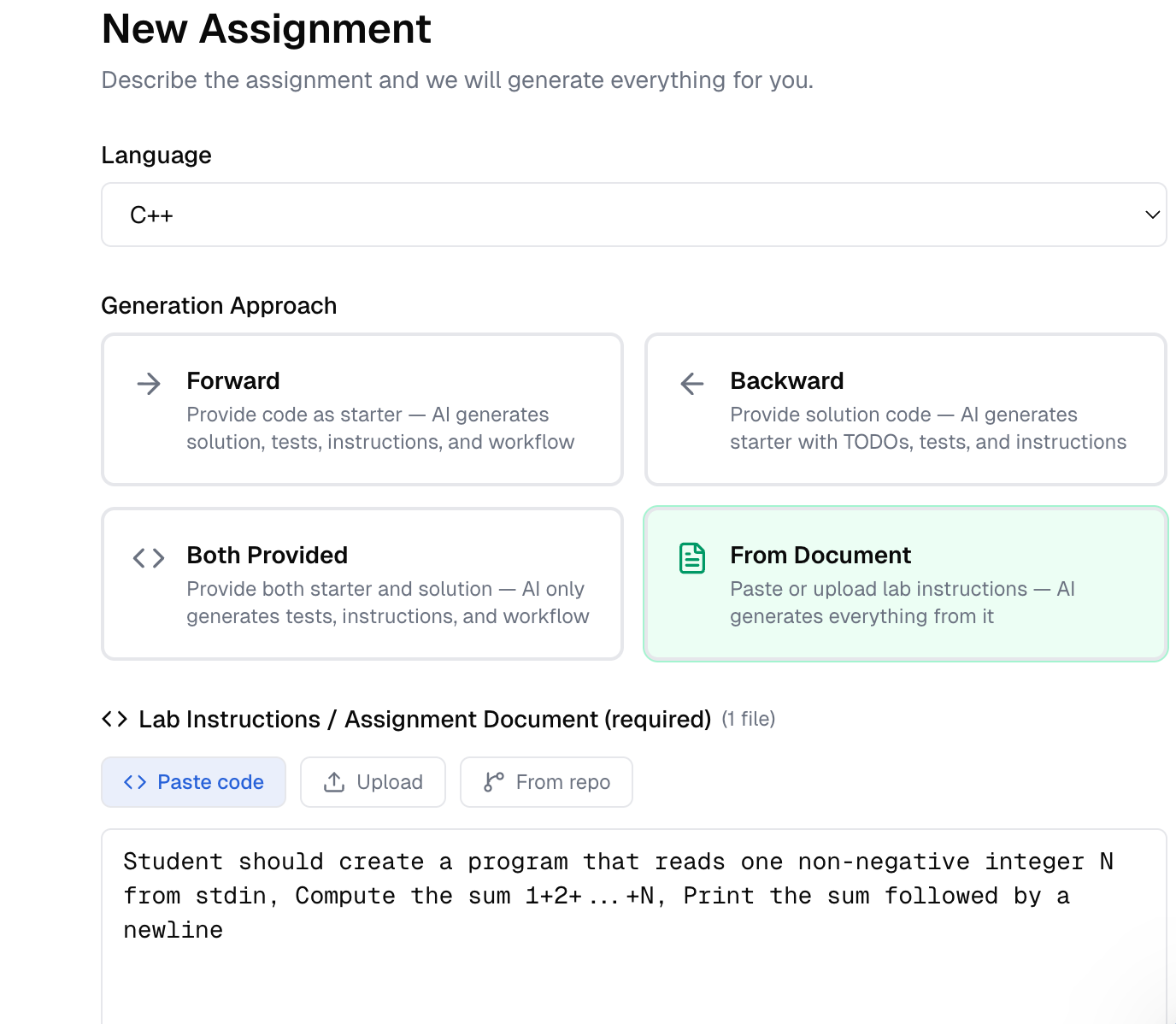
The form
After clicking From Document, the form changes to show Lab Instructions / Assignment Document (required). Three input options:
- Paste code — paste the prose into the textarea (default tab)
- Upload — drop a file (
.md,.txt,.docx) - From repo — pull from a public GitHub URL (handy if your handouts already live there)
There's no separate "Description" field in this mode — the document IS the description. The other shared fields (language, repo name, difficulty, objectives) work the same as the other modes.
Documents that produce great assignments — five habits
The clearer your prose, the better the result. Vague documents produce vague assignments.
Specify inputs and outputs explicitly. "The program reads a list of integers from stdin, one per line, until EOF, and prints the median to stdout" beats "the program processes numbers and outputs the result" by a mile. Be ruthlessly specific about format.
Name the data structures. "Use a hash map keyed by string, with values being lists of (date, amount) tuples" gives the AI a concrete shape to build for. "Store the data efficiently" leaves it guessing.
Include at least one example. Input: 1 2 3 → Output: 2 anchors the AI's understanding immediately. Several examples covering edge cases (empty input, single value, ties) are even better.
State constraints. "Use only the standard library", "no recursion allowed", "must run in O(n)" — these become MANDATORY INSTRUCTOR REQUIREMENTS that the AI follows during generation. If you don't say it, the AI might violate it.
Mention what to avoid. If you want students to learn loops, say "do not use built-in sum() or max()." If you want them to learn recursion, say "iterative loops are not allowed." Otherwise the AI picks whatever's most idiomatic, which may shortcut the lesson.
Two examples that work well
A short, well-bounded one:
Implement a Vigenère cipher in Python. The program takes two command-line arguments: a key (uppercase letters only) and a mode (
encryptordecrypt). It reads plaintext (or ciphertext) from stdin and writes the transformed text to stdout. Non-letter characters pass through unchanged. Preserve case.Examples:
python vigenere.py LEMON encryptwith inputATTACK AT DAWN→LXFOPV EF RNHRpython vigenere.py LEMON decryptwith inputLXFOPV EF RNHR→ATTACK AT DAWNUse only the standard library.
A longer one (a lab handout you might already have):
Lab 5: Word Frequency Counter
Background
One of the most common tasks in text processing is counting how often each word appears…
Requirements
Write a Python program that reads a text file…The program should be case-insensitive…Punctuation should be stripped…
Tasks
- Read the input file path from command line
- Tokenize the text into words…
- Build a frequency dictionary…
- Print the top 10 words…
Either format works — the AI extracts requirements, tasks, examples, and constraints regardless of how the document is structured.
What happens after you click Generate
The full four-step pipeline runs (no skips):
- Generate starter from your document
- Generate solution that implements the starter's TODOs
- Generate tests against the solution (using examples from your document if any)
- Generate
Instructions.mdthat restructures your document into CodeTeach's standard format - Sandbox check — runs the solution against tests
Usually 1–3 minutes. The assignment moves to Review & Edit when done.
In From Document mode, the Solution and Starter tabs on Review are the most important to read carefully — those are 100% AI-invented and you need to confirm the AI built the assignment you actually meant.
Common pitfalls
Document is too vague. "Write a calculator" gives the AI almost nothing — what operations? What input format? What output format? You'll get a generic four-function calculator that may not match what you wanted. Add specifics, or switch to a more constrained mode if you have the inputs.
Document mixes multiple assignments. If your handout has Part A, Part B, and Part C as three separate problems, the AI may try to roll them all into one assignment (or pick one and ignore the others, unpredictably). Generate each part separately, or trim the document to just the part you want.
Document is your existing solution code, not prose. If you paste working code into the From Document field, the AI treats it as a description of behaviour rather than code to ship. Use Backward mode instead.
Document references external files / images. "See diagram 3.1 in chapter 5" doesn't help the AI — it can't see the diagram. Either describe the diagram in words or attach an example.
Examples in the document conflict with each other. If you write input: 5 → output: 10 then later say input: 5 → output: 25, the AI guesses which one you meant. Be consistent.
Where to go next
- Generation finished? → The Review & Edit screen. In From Document mode especially, read the Solution tab carefully — the AI invented all of it.
- AI built the wrong assignment? → Edit the document in the Seed step (click Seed in the progress bar) to be more specific, then re-run from scratch. Or accept what the AI built and edit each tab on Review directly.
- AI's interpretation is close but off in details? → Often faster to edit the Starter / Solution tabs by hand on Review than to regenerate.