Both Provided mode — when you have starter and solution
Highest-control generation mode. You provide both the starter and the solution; the AI handles only the tests and instructions. Best when you've already prepared a lab manually and just want the autograder built.
Written By Alan Gandy
Last updated 3 months ago
Both Provided is the highest-control mode. You provide exactly what students see (the starter) AND exactly what passes (the solution). The AI handles only the tests and the student-facing instructions — it never touches your code.
Pick this mode when you've already prepared a lab by hand and just want the autograder + Instructions.md generated for you. It's also the right mode if you've used Forward or Backward before, are happy with the starter and solution, but want to make minor tweaks without regenerating the whole thing.
If you have only starter code, use Forward mode. If you have only a working solution, use Backward mode. If you have only prose, use From Document.
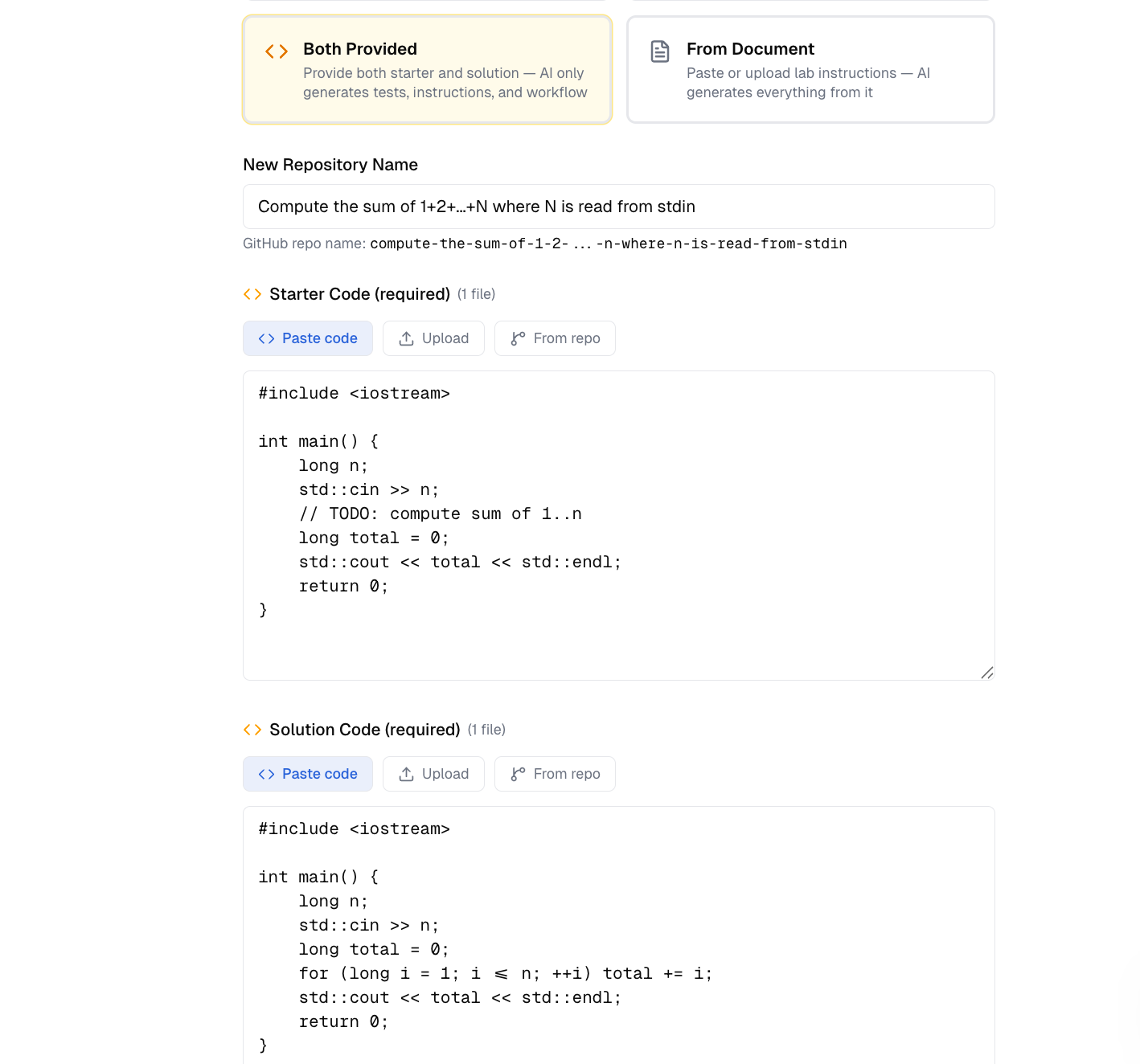
The form
After clicking Both Provided, the form shows two required fields:
- Starter Code (required) — the student-facing skeleton with TODOs
- Solution Code (required) — your complete working implementation
Each has the same paste / upload / from-repo input options. The rest of the form is shared across modes — see Picking a generation mode for the cross-mode fields.
The one critical rule: shared entry point
This is the only hard requirement in Both Provided mode. Whatever file the autograder runs (e.g., main.py, Main.java, main.cpp) must:
- Exist with the same filename in both starter and solution
- Have the same import structure (so the autograder runs without changing how it's invoked)
- Take the same inputs (stdin, command-line args, file reads)
- Produce output the same way (stdout)
If your starter has solution.py and your solution lives in answer.py, the autograder won't know what to run. Rename so both share the entry point.
The cleanest test: when you diff your starter and solution, the only differences should be inside function bodies, not at the call site. Same imports, same main(), same function signatures.
How tests get generated
The AI runs your solution against several inputs it generates and captures the output, then writes test cases that:
- Set the input (stdin or files)
- Expect the captured output (stdout)
- Use one of three comparison types — Exact match, Output contains, or Regex (the AI picks per test)
- Get a default point allocation that totals 100 across all tests (you can edit)
This means the tests are only as correct as your solution. If your solution has a bug, the AI codifies that bug as the expected output, and your students get graded against the bug. Run your solution by hand against several inputs (especially edge cases) before clicking Generate.
Difficulty still controls Instructions.md
Even though the AI doesn't touch your code in Both Provided mode, the difficulty level you pick still controls what Instructions.md looks like:
- Beginner — Instructions show complete working code for each TODO
- Intermediate — Instructions show partial snippets and pseudocode
- Advanced — Instructions describe requirements without code
See Choosing a difficulty level for the full breakdown — getting this wrong is the most common reason students get stuck.
What happens after you click Generate
Two of the four AI steps are no-ops in this mode:
Generate starter— skipped (you provided it)Generate solution— skipped (you provided it)- Generate tests against your solution
- Generate Instructions.md
- Sandbox check — runs your solution against the generated tests to confirm
Usually 30–90 seconds — fastest of the four modes since the code-generation steps are skipped.
Common pitfalls
Starter and solution have different filenames. The autograder won't know which file to run. Rename so both share the entry point.
Solution prints output your starter doesn't. Even when fully implemented, a starter that misses a print() won't match the solution's output, and every test fails. Diff your starter and solution to make sure the only differences are inside function bodies.
Starter has logic that contradicts the solution. If your starter has def add(a, b): return 0 # TODO, students implementing return a + b will pass tests, but the AI may have gotten confused. Strip everything inside TODO functions to a single pass or raise NotImplementedError so the AI knows the function is intentionally empty.
Tests look thin. The AI sometimes generates only 2–3 tests when there should be more (different edge cases, different code paths). Open the Tests tab on Review and add coverage by hand.
Where to go next
- Generation finished? → The Review & Edit screen — jump to the Tests tab and add coverage you want.
- Tests don't match your solution's output? → Likely a stray
printor whitespace issue. Re-run your solution by hand to verify the actual output, then edit the test in the Tests tab. - Want to add more tests beyond what the AI generated? → Editing tests walks through adding, deleting, and tuning test cases.